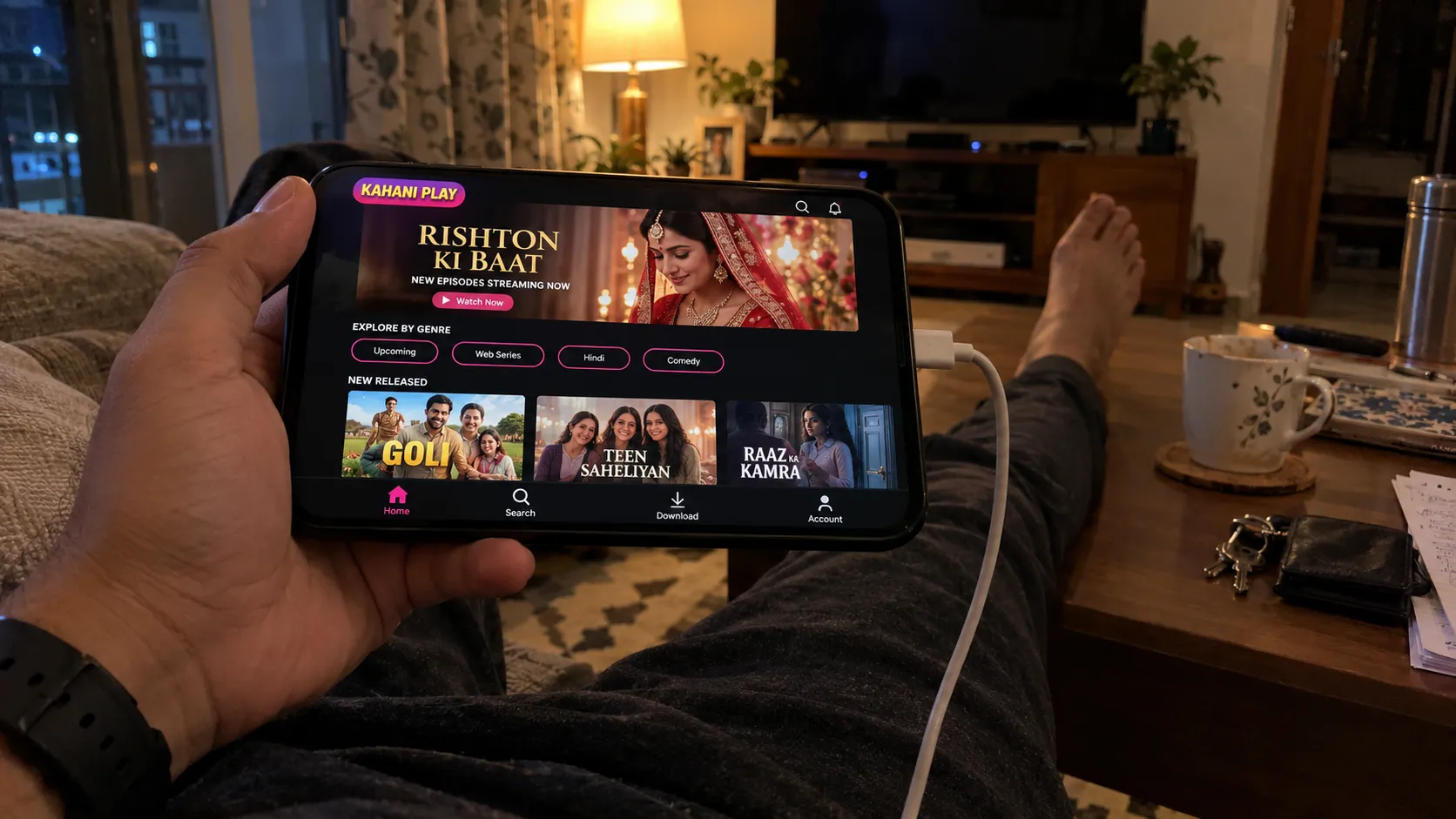
I've published apps through more than 70 releases, including Kahani Play with over 500,000 downloads. The build is the hard part, but the publishing step catches more founders out than it should, mostly because of accounts, forms and testing rules that only show up at the end.
Here's the process for both stores in the order I actually do it, with the costs and timelines as of 2026.
What it costs
| Apple App Store | Google Play | |
|---|---|---|
| Developer account | $99 a year | $25, one time |
| Commission on digital sales | 15% (small business program) or 30% | 15% on the first $1M a year, then 30%; 15% on subscriptions |
| Typical review time | Usually within 24 to 48 hours | A few hours to a few days; longer for new accounts |
Step 1: open the developer accounts
Do this first, because it can take longer than anything else. Open both accounts in your company's name, not your developer's. Whoever owns the account owns the app, its reviews and its download history.
- Apple: enroll in the Apple Developer Program as an organisation. You'll need a D-U-N-S number (free, but it can take up to two weeks), a company website and someone who can sign for the company.
- Google: create a Google Play Console account as an organisation. Google verifies your identity and company details, and organisation accounts also need a D-U-N-S number.
- Add your developer as a user with the right role in App Store Connect and Play Console, rather than sharing passwords.
Step 2: test before you submit
Both stores give you private testing channels. Use them. Real people on real phones find problems no simulator does.
- Apple TestFlight: internal testers can install builds within minutes. External testers need a quick beta review first, usually under a day.
- Google Play internal and closed testing: upload a build and share a link with testers.
Google Play rule that catches people out: new personal developer accounts must run a closed test with at least 12 testers for 14 days in a row before they can publish to production. Organisation accounts don't have this requirement, which is another reason to register as a company.
Step 3: prepare the store listing
- App name and subtitle (Apple) or short description (Google): your main keyword belongs here.
- Description: what the app does and who it's for, in plain language.
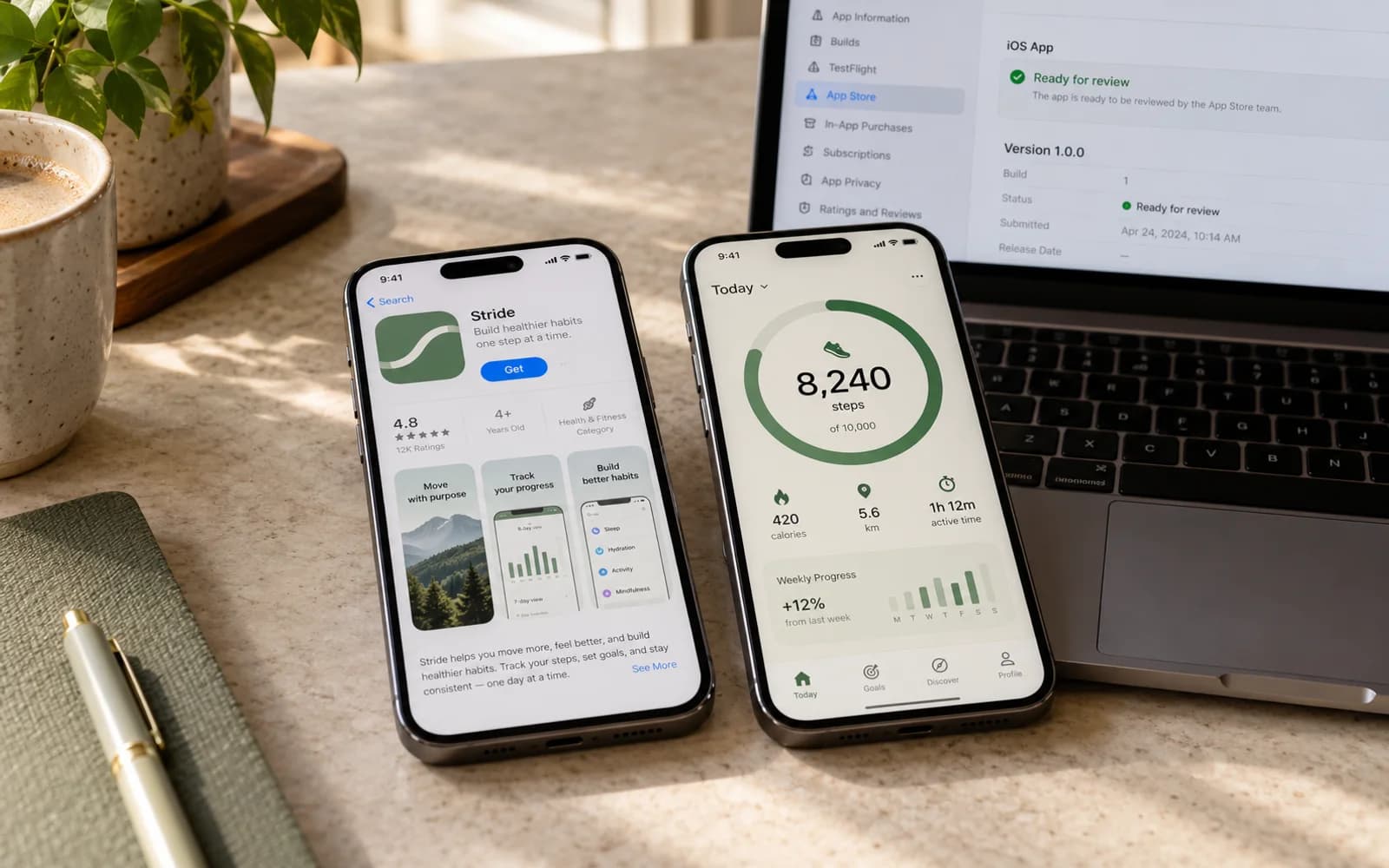
- Screenshots: Apple requires iPhone screenshots at the current largest size, plus iPad if you support it. From April 2027 Apple will also ask for iPhone Duo screenshots. Google needs phone screenshots and a feature graphic.
- App icon at full resolution, with no transparency for Apple.
- Privacy policy URL: required by both stores, even for simple apps.
- Support URL or email.
- Age rating questionnaire in both consoles.
Step 4: the privacy forms
Both stores ask exactly what data your app collects, including data collected by SDKs like analytics, crash reporting and ads. Apple calls it App Privacy, the nutrition label on your listing. Google calls it the Data safety form. Get them right: a mismatch between the form and what your app actually does is a common reason for rejection or removal later.
Both stores also require that users who can create an account inside your app can delete it from inside your app. If you're handling users in India, the DPDP Act adds its own rules on top.
Step 5: submit for review
- Upload the release build from Xcode (Apple) or as an Android App Bundle (Google).
- Attach it to your store listing, answer the export compliance and content questions.
- If the app needs a login, give the reviewer a working demo account. Missing demo logins are one of the most common avoidable rejections.
- Choose manual or automatic release, then submit.
Why apps get rejected
| Reason | What it means | How to avoid it |
|---|---|---|
| Crashes or bugs | The reviewer hit a crash or a broken flow | Test on real devices through TestFlight and closed testing |
| Minimum functionality | The app is too thin, or just a website in a wrapper | Offer real native value beyond your website |
| Missing demo account | The reviewer couldn't log in | Provide working credentials in the review notes |
| Privacy mismatch | Data collected doesn't match the privacy forms | Audit every SDK and fill the forms accurately |
| Payments | Digital goods sold outside in-app purchase where not allowed | Follow each store's current payment rules for your region |
| Account deletion | No way to delete an account in the app | Add a delete-account option in settings |
After launch
- Watch crash reports in Xcode Organizer, Play Console and your crash tool for the first two weeks.
- Reply to reviews, especially the bad ones. Store algorithms and future users both notice.
- Keep up with OS releases. Google requires apps to target a recent Android version to keep updating, and new iOS versions break things every year. An app maintenance plan covers this.
- Improve your listing over time: test screenshots and the first line of your description.
Want someone to handle it?
Publishing is included in every app I build: accounts set up in your name, testing, store listings, privacy forms and review. If your app is built but stuck in review, or you'd like the whole thing done for you, get in touch.