I've set up Google Merchant Center for Shopify stores, including stores selling refurbished electronics, which is one of the categories Google looks at most carefully. The suspension email is vague on purpose and the fix is not. It is mostly unglamorous work on policy pages, contact details and product data. Here is the checklist I work through.
What the suspension actually means
Misrepresentation is Google's policy against stores that could mislead shoppers: hiding who runs the business, being unclear about what happens after payment, making claims that look too good to be true, or presenting products as something they are not. When Merchant Center flags an account for it, the whole account is usually suspended, not just a few products. Your Shopping ads stop, your free product listings disappear, and the products in Merchant Center show as disapproved.
Google does not usually say which page or product triggered it. That's the frustrating part, and the reason people get stuck in a loop of fixing one thing, requesting review, and being rejected again. Google does not have to explain its decision, so you need to assume a reviewer will look at your whole store with fresh, sceptical eyes.
Do not request a review the same day you get suspended. Review requests are limited, and repeated rejections can lead to a waiting period before you can ask again. Fix everything first, then ask once.
Common causes on Shopify stores
Almost every case I've looked at comes down to some mix of the following. Shopify makes it easy to launch a store fast, and the pages Google cares about are the ones people leave for later.
Missing or thin policy pages
Shopify can generate return, refund, privacy and shipping policy templates. Many stores leave the template unedited, or never link the pages from the footer. A reviewer wants to find, in a click or two, how long delivery takes, what it costs, whether returns are accepted, within how many days, who pays return shipping and how refunds are made. Placeholder text like "[Your store name]" in a policy is an obvious problem.
No real contact details
A contact form alone is weak. Google wants to see that a real business stands behind the store: a business name, a phone number, an email address and, for most stores, a physical address. The details on the site should match what is in your Merchant Center business information. A Gmail address and no phone number on a store selling ₹40,000 laptops will not pass.
Copied marketplace titles and fancy Unicode text
Stores that import products from Amazon or Flipkart often carry the marketplace's text along with them: "Visit the X Store", seller badges, "Amazon's Choice", or bullet points referencing another platform. Titles written in Unicode "bold" or script letters (the kind generated by fancy font websites) are another one. They look like spam to a reviewer and can break how Google reads the title. Write titles in plain text, with the brand, product, model and key attribute.
Refurbished or used items not marked as such
If a phone is refurbished, it has to say so in the product data, not just in a line of the description. Merchant Center has a condition attribute with new, refurbished and used. If you leave it blank, Google treats the product as new, and listing a refurbished item as new is about as clear a case of misrepresentation as exists. Say "Refurbished" in the title too, and explain the grading and warranty on the page.
Prices that look too good to be true
Huge compare-at discounts, a premium brand at a fraction of its usual price, or a "90% off" banner on every product all raise the same question: is this real? If your prices are genuinely low, explain why. If the compare-at prices are inflated to make the discount look bigger, fix them.
Business information and checkout trust
Unverified business details in Merchant Center, a store name that does not match the domain or the legal entity, a checkout that redirects through an unfamiliar payment page, or payment methods listed on the site that do not appear at checkout. Each one alone may not trigger a suspension. Together they make a store look unsafe to buy from.
The fix checklist
Work through this in order. Do all of it, even the parts you think are fine.
- Rewrite the policy pages. Shipping (delivery times by region, costs, free-shipping threshold, courier), returns (window, conditions, who pays), refunds (method and timeline), privacy and terms. Make them specific to your store and remove every placeholder.
- Link them everywhere. Footer on every page, and the shipping and returns summary on product pages. In Shopify, add the policies under Settings → Policies so they also appear at checkout.
- Build a proper contact page. Legal business name, phone, email on your domain, and a physical address. Add the same details to the footer or an About page.
- Match Merchant Center to the site. Business name, address, phone and customer service details in Merchant Center should be identical to what the site shows. Complete any business verification Google offers you.
- Clean product titles and descriptions. Remove marketplace text, Unicode fonts, all-caps and keyword stuffing. Check images for other sellers' watermarks.
- Set condition on every non-new product. Mark refurbished and used items correctly in the product data and in the title.
- Check prices and claims. Remove fake compare-at prices, unverifiable claims like "#1 in India", and countdown timers that reset on refresh.
- Test checkout end to end. Place a real order on mobile. Every payment method you advertise must work, and the price at checkout must match the product page and the feed.
- Remove anything you cannot stand behind. Fake reviews, borrowed trust badges, "as seen on" logos you have no right to use.
- Look at the store as a stranger. Open it in a private window on a phone and ask: would I give this site my card details?
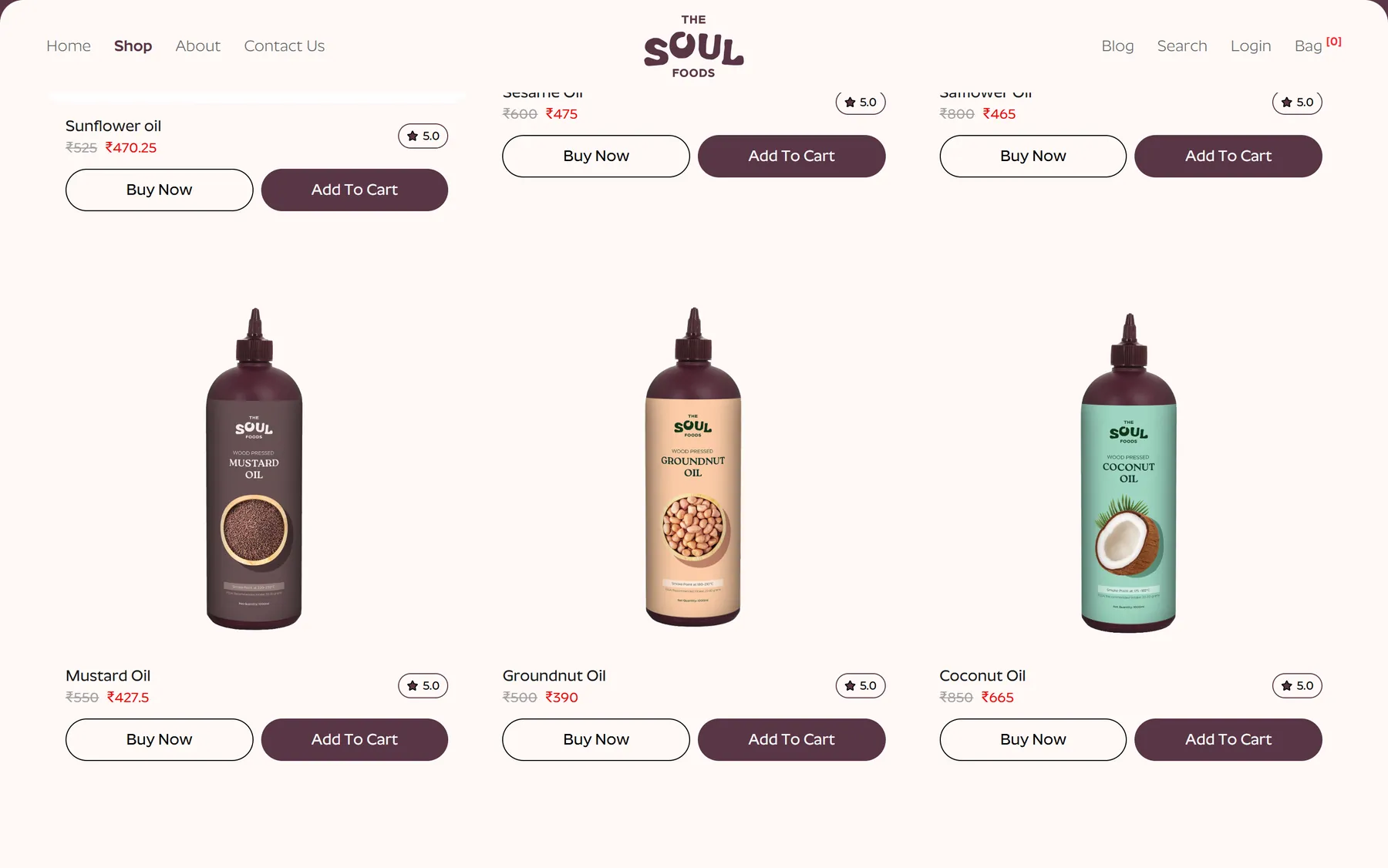
On a headless store, check the storefront itself, not just Shopify admin. On HEIR and The Soul Foods, product pages carry shipping and return details, and the contact page on The Soul Foods shows a phone number, a WhatsApp link and the plant address beside the form. That is the kind of detail a reviewer looks for.
Requesting a review and what to write
Once everything is fixed, open the Needs attention or account issues area in Merchant Center, find the misrepresentation issue and request a review. Some flows give you a text box, some do not. Where there is one, keep it short and factual. Do not argue with the decision or say you have done nothing wrong. List what you changed.
Something like: "We've updated our shipping, returns and refund policies with specific timelines and costs and linked them from every page. Our contact page now shows our registered business name, address and phone number, matching our Merchant Center details. We've removed marketplace text from product titles, marked refurbished products with the correct condition, and corrected compare-at prices. We'd appreciate a fresh review." Only list things you actually did.
| Stage | What happens | What to do |
|---|---|---|
| Review requested | The account shows the review as in progress | Don't change the store's core details mid-review |
| Typical wait | Often a few business days, sometimes a couple of weeks | Keep fixing small things, but no new review request |
| Rejected | Suspension stays; you may get a waiting period before the next request | Go back through the checklist; look for what you missed |
| Approved | Products start reappearing as they are re-reviewed | Keep the pages and feed clean so it does not return |
If you're rejected more than once, stop and get a second pair of eyes on the store before the next request. Each failed attempt makes the next wait longer, and you only learn a little from each one.
Preventing it with the Google & YouTube app
Shopify's Google & YouTube app connects your store to Merchant Center and syncs products automatically. It also checks some store requirements during setup, such as whether your policies and contact information are in place. Use it rather than uploading spreadsheets by hand, because a feed that drifts out of sync with the site (prices, stock, titles) is its own source of trust problems.
- Fill in the Google fields the app adds to each product, especially condition for anything not new, plus brand and identifiers like GTIN where they exist.
- Only sync products that are ready. Exclude drafts, test products and anything without proper images.
- Check the app's product status after every bulk import. Disapproved products are an early warning.
- Set up shipping in Shopify and Merchant Center so the costs Google shows match what checkout charges.
- Finish all the trust pages before you connect Merchant Center for the first time. A first review is easier than an appeal.
This is why I set up policies, contact details and Google Shopping as part of a store build rather than after launch. It costs very little at that stage. I cover what that work typically costs in Shopify developer cost in India.
When to get help
If you have been through the checklist and still cannot find the problem, it is usually something you have stopped seeing: a theme section with copied text, an old landing page still indexed, a payment method that silently fails on mobile. I help Shopify stores with this as part of my Shopify development work, whether I built the store or not. Send the store URL and what Merchant Center shows through the contact page or the Shopify quote form. If you're comparing who to hire for it, hiring a developer in India and freelancer vs agency cover the tradeoffs.